
Grokipedia VS Wikipedia — Side-by-side comparison
By: Pavel Kerbel
At a glance

Grokipedia VS Wikipedia
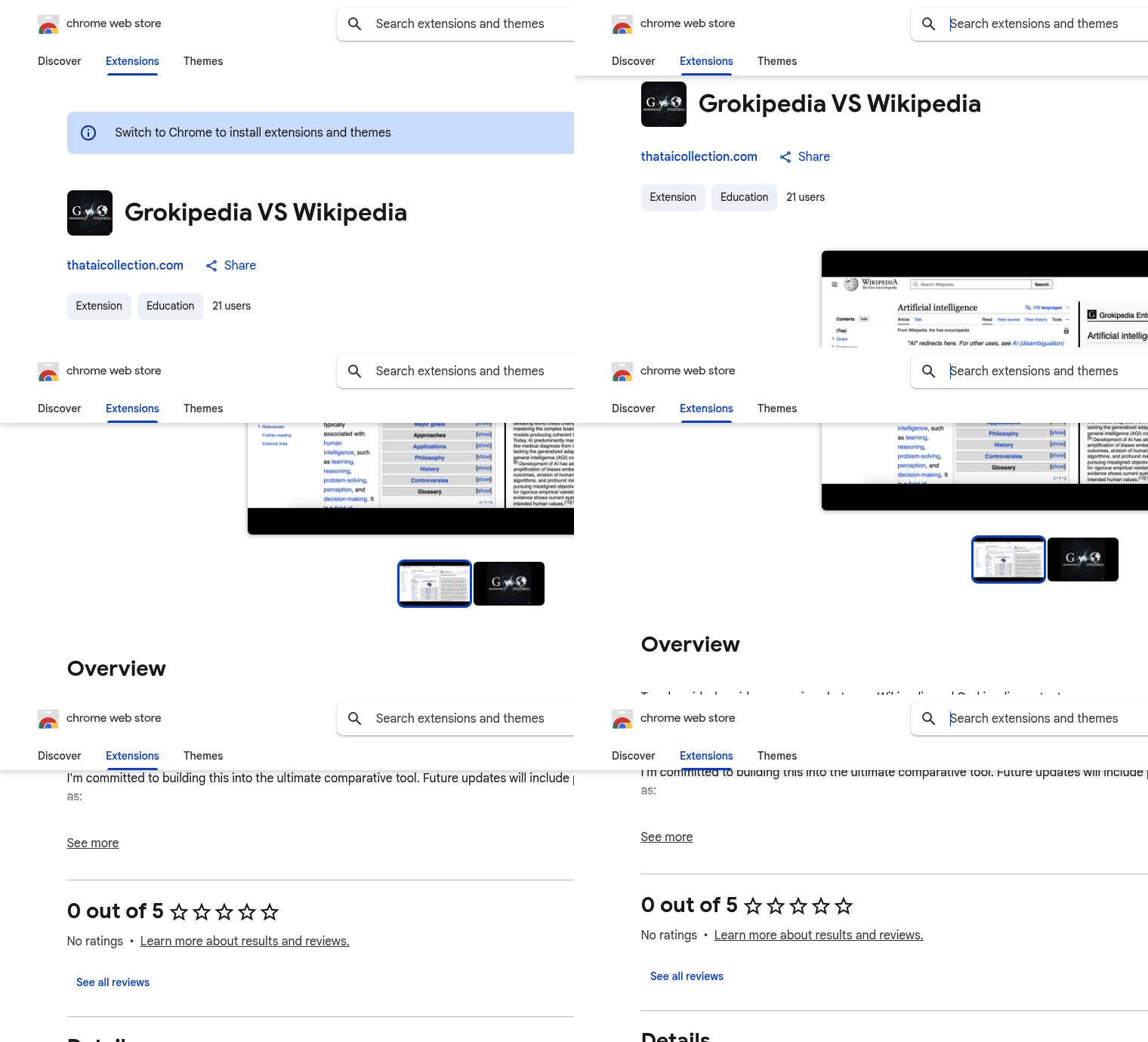
FreeGrokipedia VS Wikipedia is a Chrome extension that adds a side-by-side comparison view between Wikipedia and Grokipedia entries. It is designed to make it faster to see alternative perspectives or contextual differences without having to switch tabs or perform a separate search.
What it is
Grokipedia VS Wikipedia is an extension for Google Chrome that surfaces Grokipedia content alongside the Wikipedia article you are reading. When active, the extension automatically finds the corresponding Grokipedia entry and places it beside the Wikipedia page so you can compare text, structure, and coverage at a glance. The listing identifies the extension as lightweight and intended to support comparative reading and research workflows.
Key features
Automatic side-by-side display: The extension pairs the currently open Wikipedia article with the matching Grokipedia page and presents both in a split view for immediate comparison.
One-click toggle: The UI is presented as a toggle so you can turn the comparative view on or off while reading a Wikipedia article.
Lightweight install: The Chrome Web Store listing describes the extension as small in size, designed to integrate without a heavy footprint in the browser.
Clear privacy disclosure: The developer has disclosed on the store listing that the extension will not collect or use your data.
Planned enhancements (announced): The developer has stated plans to add features requested by the community in future updates, including social sharing tools to capture comparative views, highlighting and annotation to mark differences, and suggested reading for related Grokipedia entries.
Pricing
The Chrome Web Store listing does not list any paid plans. The extension is available through the Chrome Web Store for installation. No pricing tiers or subscription details are presented on the store page; users can add the extension to Chrome from its listing.
The store entry also includes basic details such as version (1.0), update timestamp, language (English), and the developer’s contact email as provided on the listing.
Who it's for
This extension is aimed at readers who want to compare encyclopedia-style entries without disrupting their reading flow: students, independent researchers, journalists, and anyone who reviews multiple sources. It's particularly useful when you want to see alternate framing, supplemental details, or differing emphasis between two wiki-style platforms quickly.
Highlights
Immediate side-by-side comparison of Wikipedia and Grokipedia articles
Automatic fetching of the matching Grokipedia entry for the page you’re viewing
Small, browser-integrated extension with a simple toggle control
Developer disclosure that the extension does not collect or use user data
Best for: Researchers, students, and readers who want a quick, integrated way to compare Grokipedia and Wikipedia content.
FAQ
What does Grokipedia VS Wikipedia do?
The extension fetches the matching Grokipedia entry and displays it side-by-side with the Wikipedia article you are viewing, enabling direct comparison between the two sources.
How do I use the extension?
Install the extension from the Chrome Web Store and open any Wikipedia article; the extension toggles a side-by-side view that loads the corresponding Grokipedia entry automatically.
Does the extension collect my data?
According to the developer disclosure on the Chrome Web Store listing, the extension will not collect or use your data.
Is there a cost to install Grokipedia VS Wikipedia?
No paid plans are listed on the store page; the extension is distributed through the Chrome Web Store for installation.
Published on: May 28, 2026
Have an AI tool of your own? Submit it below and get a free, in-depth product review article — just like this one.
Add your AI tool in seconds
Paste your URL and we'll draft the listing. You review and edit every field before submitting.
More Product Reviews:

By: PlagiarismRemover.AI

By: AI Collection